
Disk encryption is a foundational security control for protecting data at rest on corporate devices. Microsoft Intune provides centralized management for native encryption technologies across Windows and macOS through endpoint security policies.
This guide walks IT administrators through configuring BitLocker and Personal Data Encryption (PDE) for Windows devices, and FileVault for macOS devices—covering prerequisites, policy creation, assignments, validation, and common troubleshooting scenarios.
A quick hit on configuring disk encryption in Intune
Windows BitLocker (endpoint security > disk encryption)
- Create policy > Platform: Windows > Profile: BitLocker
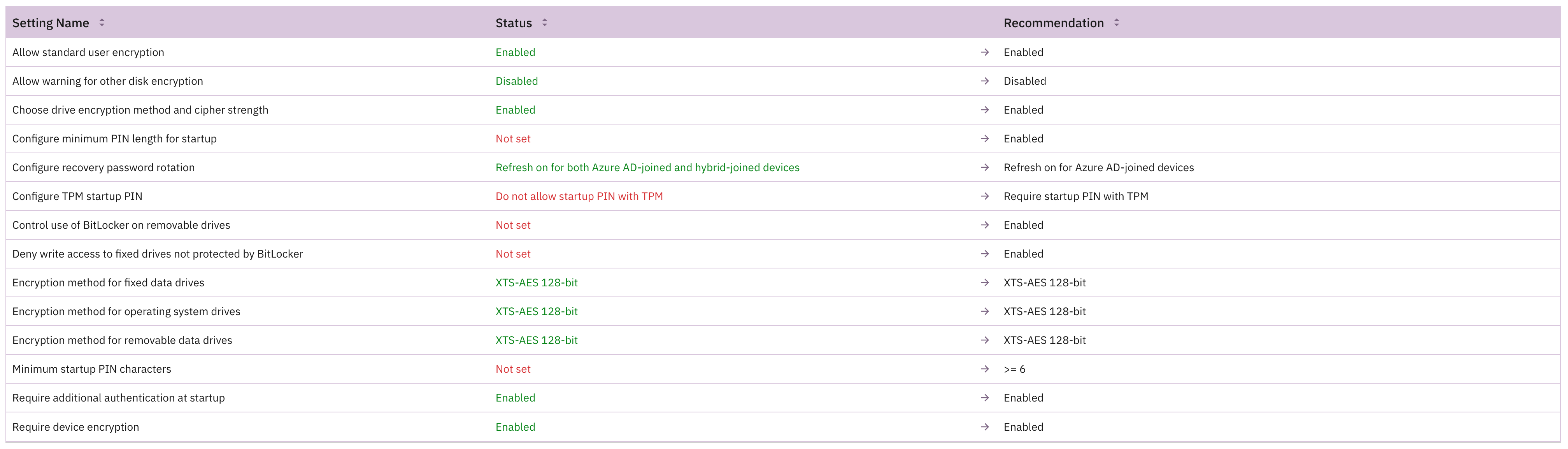
- Set encryption method (XTS-AES 128 recommended)
- Enable recovery password rotation
- Disable "Allow Warning For Other Disk Encryption" for silent enablement
- Assign to device groups
- Validate with manage-bde -status and monitor in Prelude
macOS FileVault
- Create policy > Platform: macOS > Profile: FileVault
- Enable FileVault, configure personal recovery key escrow and rotation
- Optional: Enforce at Setup Assistant (macOS 14+)
- Assign to device groups
- Verify encryption status and monitor in Prelude
Windows 11 Personal Data Encryption (optional)
- Create policy > Platform: Windows > Profile: Personal Data Encryption
- Ensure prerequisites: Windows Hello, Entra join, ARSO disabled
- Assign and validate protection status
Prerequisites and planning
Before configuring disk encryption policies, you need to understand the licensing requirements, verify device compatibility, and ensure the right administrative permissions are in place. Successful deployment depends on meeting platform-specific prerequisites—particularly around hardware (TPM for Windows), enrollment type (User Approved MDM for macOS), and authentication methods (Windows Hello for PDE).
Licensing and editions
- Intune licensing: Requires Intune Plan 1 (included in Microsoft 365 Business Premium, Microsoft 365 E3/E5, or EMS E3/E5). View detailed licensing requirements.
- Windows BitLocker: Supported on Windows 10 Pro (version 1809+) and Windows 11 via the BitLocker CSP. Enterprise and Education editions support the full feature set. To manage BitLocker beyond basic enable/disable, users require Windows 10/11 Enterprise E3/E5 or Education A3/A5 licenses.
- Windows Personal Data Encryption: Available on Windows 11 version 22H2 and later. The known folders feature (Desktop, Documents, Pictures) requires Windows 11 version 24H2. Licensing requires Windows Enterprise E3/E5 or Education A3/A5.
- macOS FileVault: Supported on macOS 10.13+ with User Approved MDM enrollment.
Device state and hardware requirements
Meeting hardware and configuration requirements is essential for encryption policies to deploy successfully and operate as intended.
Windows BitLocker silent enablement
- Microsoft Entra joined or hybrid-joined devices
- TPM 1.2 or later
- UEFI-only BIOS (not legacy BIOS)
- No startup PIN or key prompts configured
- Version-specific behavior: Windows 10 version 1803 allows silent enablement for admin accounts; version 1809+ extends this to standard users when
AllowStandardUserEncryptionis enabled
Windows Personal Data Encryption:
- Windows Hello for Business is configured and in use
- Automatic Restart Sign-On (ARSO) disabled
- Microsoft Entra joined or hybrid-joined (domain-joined not supported)
macOS FileVault:
- User Approved MDM enrollment (users must manually approve the management profile in System Preferences)
- Recovery key escrow must be completed before encryption starts
RBAC and Permissions
Specific Intune role assignments and Microsoft Entra permissions are required to create policies, rotate recovery keys, and view escrowed credentials:
Intune roles
- To manage encryption policies and perform remote key rotation, assign the Help Desk Operator or Endpoint Security Manager role
- Both include the Remote tasks permission with Rotate BitLocker key and Rotate FileVault key rights
Viewing BitLocker recovery keys
- Requires the Microsoft Entra permission
microsoft.directory/bitlockerKeys/key/read - The Cloud Device Administrator role includes this permission by default.
Configure Windows 10/11 BitLocker (Endpoint Security policy)
BitLocker policies are created in the Endpoint Security node of Intune and use the BitLocker CSP to manage encryption settings, recovery options, and authentication requirements.
1. Create the policy
- Navigate to Microsoft Intune admin center > Endpoint security > Disk encryption
- Select Create policy
- Platform: Windows 10 and later
- Profile: BitLocker
- Select Create
2. Configure core settings
Silent enablement:
- Require Device Encryption: Enable
- Allow Warning For Other Disk Encryption: Disable (critical for silent enablement; suppresses prompts if third-party encryption is present)
- Compatible TPM startup: Allowed or Required
- Compatible TPM startup PIN: Blocked (any user interaction breaks silent workflows)
- Compatible TPM startup key: Blocked
- Compatible TPM startup key and PIN: Blocked
If your devices meet prerequisites (Entra join, TPM, UEFI), encryption will begin silently at next device check-in.
Encryption method:
- Configure encryption method for Operating System drives: XTS-AES 128 (Windows default and recommended for performance). Use XTS-AES 256 only if compliance frameworks mandate it.
- Apply the same method to fixed data drives and removable drives via
EncryptionMethodByDriveType
Fixed and removable drives:
- Block write access to fixed data drives not protected by BitLocker: Enable to require encryption before data can be written
- Configure similar settings for removable drives if organizational policy requires
Recovery key handling:
- Configure client-driven recovery password rotation: Select Microsoft Entra joined devices or Microsoft Entra hybrid joined devices to enable automatic key rotation upon use
- Require device to back up recovery information to Microsoft Entra: Yes (prevents enablement from completing until the recovery key is safely escrowed)
- User creation of recovery password: Allowed or Required
- Hide recovery options during BitLocker setup: Yes (prevents users from choosing recovery options; admin-defined settings take precedence)
Encryption type:
- SystemDrivesEncryptionType: Used space only encrypts faster (only used sectors). Full encryption encrypts the entire volume. For existing deployments, used space only is typically sufficient; new deployments in highly regulated environments may require full disk encryption.
Avoid policy conflicts: If you use Intune security baselines, check for conflicting BitLocker settings (e.g., requiring a TPM startup PIN). Conflicts will prevent silent enablement.
3. Scope tags and assignments
- Add scope tags if using role-based administration
- Assignments: Assign to device groups (not user groups). Disk encryption policies must target devices.
- Avoid overlapping policies that configure the same settings to prevent conflicts
4. Validate and monitor
On individual devices:
- Open Command Prompt as Administrator
- Run: manage-bde -status c:
- Verify Conversion Status shows "Used Space Only Encrypted" or "Fully Encrypted"
- Confirm Encryption Method matches your policy (e.g., XTS-AES 128)
In Intune:
- Navigate to Reports > Device encryption to view encryption status across your fleet
- Export reports for compliance evidence
In Prelude:
- Prelude surfaces current BitLocker policy configurations across your environment, highlights devices without policies, and identifies configuration drift—giving you continuous visibility into your encryption posture without manual checks.
Configure macOS FileVault
FileVault policies use Intune's endpoint security framework to manage native macOS encryption, with a two-stage workflow that escrows recovery keys before enabling encryption.
1. Create the policy
- Navigate to Endpoint security > Disk encryption > Create Policy
- Platform: macOS
- Profile: FileVault
- Select Create
2. Configure settings
Core settings
- Enable FileVault: Yes
- Recovery key type: Personal Recovery Key (only option; institutional keys are not supported)
- Personal recovery key rotation: Set rotation interval in months (e.g., every 6 or 12 months)
- Escrow location description: Provide a message explaining where users can retrieve their recovery key. Example: "To retrieve your recovery key, sign in to the Company Portal website and select Get recovery key under your device."
- Hide recovery key: Yes (key is hidden during encryption; users retrieve it later via Company Portal)
User experience
- Number of times allowed to bypass: Set to Not configured (encryption required before next sign-in) or allow a specific number of deferrals (1–10)
- Allow deferral until sign out: Yes (postpones the prompt until the user signs out)
- Disable prompt at sign out: Yes (moves the prompt to sign-in instead)
Critical workflow
FileVault enablement is a two-stage process:
- Escrow the recovery key to Intune/Entra (requires User Approved MDM)
- Begin encryption after escrow succeeds
If escrow fails, encryption won't start. Ensure devices have network connectivity and User Approved MDM enrollment.
3. Enforce at Setup Assistant (macOS 14+ Optional)
For devices running macOS 14 or later, you can enforce FileVault before users reach the home screen using the Settings Catalog:
- Navigate to Devices > Configuration > Create > Settings catalog
- Add settings from Full Disk Encryption category:
- Enable: On
- Defer: Enabled (required on macOS 14+)
- Force Enable in Setup Assistant: Enabled
- Under Enrollment configuration, ensure Await final configuration is set to Yes (prevents users from accessing the device until policies apply)
- Create an enrollment filter using EnrollmentProfileName attribute to target this policy during the first check-in
- Assign to the appropriate device groups
4. Assign and create
- Assign to device groups
- Avoid overlapping FileVault profiles
- Select Review + create
5. Validate and support
Verify encryption:
- On the device, open System Preferences > Security & Privacy > FileVault
- Confirm FileVault is On and encryption is complete
User recovery key access:
- Users can retrieve their recovery key from the Company Portal website by navigating to Devices > [select device] > Get recovery key
- Admins can rotate keys for corporate-owned devices via Intune
In Prelude:
- Prelude provides visibility into FileVault policy deployment, highlights devices missing policies, and monitors configuration status across your macOS fleet.
Configure Windows 11 Personal Data Encryption (optional)
Personal Data Encryption (PDE) encrypts individual files and folders rather than entire volumes, and is tied to Windows Hello for Business. It complements BitLocker by adding a user-specific layer of protection.
Prerequisites
- Windows 11 version 22H2 or later (known folders feature requires 24H2)
- Windows Hello for Business is configured and in active use
- Microsoft Entra joined or hybrid-joined (domain-joined devices not supported)
- Automatic Restart Sign-On (ARSO) disabled
1. Create the policy
- Navigate to Endpoint security > Disk encryption > Create policy
- Platform: Windows 10 and later
- Profile: Personal Data Encryption
- Select Create
2. Configure settings
PDE policies are minimal. The primary setting enables protection for known folders (Desktop, Documents, Pictures). Ensure Windows Hello is enforced via separate identity policies.
3. Assign and validate
Assign to device groups that meet the prerequisites. Validation:
- Navigate to a protected folder (e.g., Documents)
- Right-click a file > Properties > Advanced
- Confirm Personal Data Encryption is: On
PDE-protected files display a padlock icon. Users who sign in with a password (not Windows Hello) will be denied access.
Troubleshooting and common pitfalls
Even with proper planning, encryption policies can fail due to hardware limitations, policy conflicts, or prerequisite gaps. The following scenarios cover the most common deployment issues and their resolutions.
Windows BitLocker
Silent enablement fails:
- Verify UEFI-only BIOS (not legacy). Check with: bcdedit | find "path"
- Confirm TPM is ready: tpm.msc or Get-Tpm in PowerShell
- Ensure no startup PIN or key is configured in policy (these require user interaction)
- Check for conflicting security baselines that enforce startup authentication
Policy updates don't re-encrypt drives:
- BitLocker CSP behavior: Settings apply when encryption starts, not when they change. To apply a new encryption method, you must decrypt the drive (manage-bde -off c:) and re-enable BitLocker—or use the manage-bde -changekey command for key-only changes.
Too many recovery keys stored in Entra (200 limit):
- Entra allows up to 200 recovery passwords per device. If this limit is reached, new enablement attempts may fail. Rotate and clean up old keys via the Devices > Recovery keys blade, or script key rotation using the RotateRecoveryPasswords CSP node.
macOS FileVault
Encryption doesn't start:
- Verify User Approved MDM enrollment (user must manually approve in System Preferences)
- Confirm key escrow completed before encryption begins (check policy receipt in Intune)
- Policy may show interim states (e.g., "Pending" or "Not applicable") during the two-stage workflow
Setup Assistant enforcement fails:
- Ensure Defer = Enabled in the settings catalog (required on macOS 14+)
- Verify Await final configuration = Yes in the enrollment profile
- Confirm the enrollment filter is correctly targeting new enrollments
Windows Personal Data Encryption
Keys won't release (files remain inaccessible):
- Confirm Windows Hello for Business is configured and the user is signing in with a PIN or biometric (not a password)
- Verify ARSO is disabled: Check HKLM\SOFTWARE\Microsoft\Windows\CurrentVersion\Policies\System\DisableAutomaticRestartSignOn = 1
- Ensure the device is Entra joined or hybrid-joined (not domain-joined)
Disk encryption policies are a critical component of endpoint security, but deployment success depends on careful planning, correct configuration, and ongoing monitoring. By following the steps outlined above—validating prerequisites, configuring policies to match your environment, and leveraging tools like Prelude for continuous visibility—you can ensure encryption is deployed consistently and maintained effectively across your Windows and macOS fleet.
FAQs
Does changing the BitLocker encryption method in policy re-encrypt existing devices?
No. Encryption settings apply when BitLocker is first enabled, not when the policy changes. To apply a new encryption method to an already-encrypted device, you must decrypt the drive and re-encrypt it. Manage this carefully to avoid downtime.
Can I enforce BitLocker on devices without a TPM?
Yes, but silent enablement typically requires TPM and UEFI. Without TPM, you can configure Allow BitLocker without a compatible TPM in the SystemDrivesRequireStartupAuthentication setting. This requires a password or USB startup key, which involves user interaction and breaks silent workflows.
Where are BitLocker recovery keys stored, and who can see them?
Recovery keys are escrowed to Microsoft Entra ID. Viewing keys requires the microsoft.directory/bitlockerKeys/key/read permission (e.g., Cloud Device Administrator role). All key access is audited in Entra ID logs.
What's the difference between BitLocker and Personal Data Encryption?
- BitLocker = full-volume encryption (entire drive)
- PDE = file-level encryption tied to Windows Hello sign-in
PDE complements BitLocker on Windows 11. BitLocker protects data at rest (e.g., stolen device), while PDE adds protection even when a device is powered on but the user has signed out. Use both together for defense in depth.
How do I monitor encryption posture across my fleet?
In Intune, use the Device encryption status report under Reports > Device encryption. Export data for compliance audits.
For continuous visibility into policy coverage, configuration drift, and devices without encryption policies, use Prelude to monitor your encryption posture across both Windows and macOS devices in real time.
.jpg)
.jpg)