
Every device enrolled in Microsoft Intune is automatically evaluated against a set of built-in compliance checks, even before you deploy a single custom compliance policy. These checks form what's known as the default device compliance policy, a tenant-wide set of requirements that can mark devices as noncompliant and trigger Conditional Access blocks if not properly managed.
Understanding how this default policy works, why devices show statuses like "Is active — Not compliant," and how to remediate common issues is critical for Intune administrators managing fleets at scale.
What is the default device compliance policy in Intune?
The default device compliance policy is a built-in, tenant-wide set of compliance checks automatically evaluated for every enrolled device. You don't deploy it like a standard compliance policy; instead, it's governed by tenant-level compliance policy settings that apply to your entire Intune environment.
Microsoft describes these settings as acting "like a built-in compliance policy that every device receives."
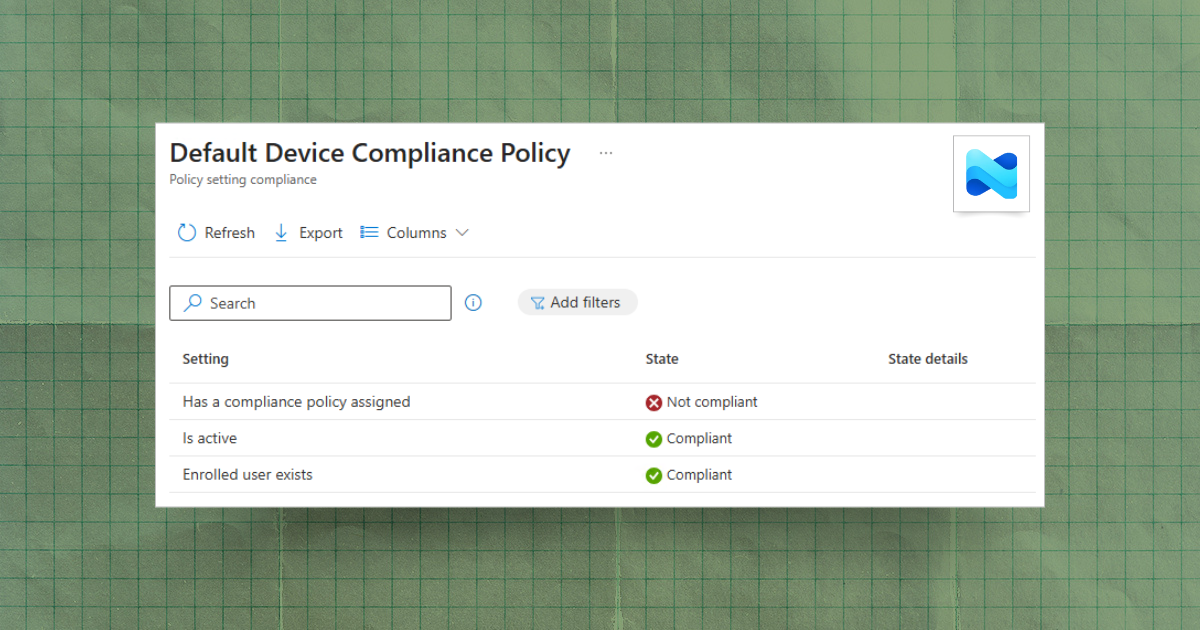
The default policy enforces three core checks on every device:
- Has compliance policy assigned: At least one applicable device compliance policy must be deployed to the device.
- Is active: The device must check in with Intune within the configured compliance status validity period (default: 30 days).
- Enrolled user exists: The enrolled user must exist in your tenant and hold a valid Intune license.
If a device fails any of these checks, it can be marked as noncompliant depending on your tenant settings. This noncompliant status integrates directly with Microsoft Entra Conditional Access, potentially blocking access to organizational resources.
How the default policy is controlled (tenant settings)
The behavior of the default compliance policy is determined by two tenant-wide settings. To configure them, sign in to the Microsoft Intune admin center and navigate to Endpoint security > Device compliance > Compliance policy settings.
Mark devices with no compliance policy assigned as
- Default: Compliant
- Recommended for Conditional Access environments: Not compliant
This setting determines how Intune treats devices that don't have an explicit device compliance policy assigned. When set to Compliant (the default), devices without a policy are considered compliant—a permissive posture that can leave gaps in your security model. When set to Not compliant, any device without a policy is marked noncompliant and will fail the "Has compliance policy assigned" check.
Microsoft's recommendation: If you use Conditional Access policies that require devices to be marked as compliant, change this setting to Not compliant. This ensures only devices that have been explicitly evaluated and passed a compliance policy can access protected resources.
Compliance status validity period (days)
- Default: 30 days
- Range: 1–120 days
This setting defines the window during which a device must successfully report its compliance status to Intune. If a device fails to check in within this period, it fails the Is active check and is marked noncompliant.
For example, with the default 30-day validity period, a device that hasn't contacted Intune in 31 days is considered inactive and noncompliant—even if it was fully compliant the last time it checked in.
Caution for Conditional Access users: Tightening the validity period (e.g., reducing it to 7 days) increases security but can also inadvertently block access for remote workers, contractors, or devices with intermittent connectivity. Loosening it (e.g., extending to 90 days) reduces lockout risk but may allow dormant or unmanaged devices to remain compliant longer than your risk tolerance permits. Document your chosen validity period and align it with your organization's device usage patterns.
What common Intune device compliance statuses mean
When a device fails one of the default compliance checks, Intune surfaces a setting-level status in compliance reports and dashboards. These statuses pinpoint exactly which check failed, making remediation faster. The following table maps the three most common default-policy statuses to their meanings and root causes:
Is active — Not compliant (or Active — Not compliant)
Meaning: The device hasn't reported its compliance status within the tenant's configured validity period (default: 30 days). Intune marks it as inactive and noncompliant because it cannot verify the device's current state.
Root causes:
- The device is offline, powered off, or unable to reach Intune service endpoints (e.g., firewall blocking traffic, VPN required but disconnected).
- The Intune MDM agent or Company Portal app is stalled, outdated, or misconfigured, preventing successful check-ins.
- The validity period is too aggressive for your fleet's usage patterns. For example, a 7-day validity period may work for office-based workstations but will fail seasonal workers or devices used intermittently.
Remediation:
- Verify the device has network connectivity and can reach *.manage.microsoft.com and related Intune endpoints.
- Manually sync the device. On Windows, users can open Settings > Accounts > Access work or school, select the enrolled account, and click Sync. On iOS/iPadOS, open the Company Portal app and tap Check status. See Microsoft's manual sync guidance.
- If devices frequently fail this check, review your validity period setting. Consider extending it to 45 or 60 days for fleets with high mobility or long offline periods, and document the business justification.
Has compliance policy assigned — Not compliant
Meaning: The device does not have any compliance policy assigned, and the tenant setting "Mark devices with no compliance policy assigned as" is configured to Not compliant. This status reveals a gap in your policy deployment.
Root causes:
- The device isn't included in any group targeted by a compliance policy (static or dynamic group membership issues).
- Platform mismatch—e.g., an Android policy deployed to an iOS device.
- Newly enrolled devices haven't yet been added to dynamic groups that trigger policy assignment.
- Assignment filters are excluding the device unintentionally.
Remediation:
- Run the Devices without compliance policy organizational report in Reports > Device compliance to identify all affected devices.
- Verify group membership: Confirm the device is in a group targeted by at least one compliance policy for its platform. Check both Devices > All devices for the device's group memberships and the compliance policy's Assignments tab.
- Review assignment filters if used. Ensure the filter logic doesn't inadvertently exclude the device.
- Create a catch-all compliance policy assigned to All users or All devices as a safety net, ensuring no device is left without a policy. Configure minimal requirements (e.g., device encryption, minimum OS version) to avoid overly permissive posture.
Enrolled user exists — Not compliant
Meaning: The user associated with the device does not exist in your tenant or does not have a valid Intune license. The default policy fails the "Enrolled user exists" check because Intune cannot verify that a licensed, active user owns the device.
Root causes:
- User account has been deleted or disabled in Microsoft Entra ID (e.g., offboarding process).
- Intune license removed or expired (often due to bulk license reassignments or subscription lapses).
- Shared device scenarios where no primary user is assigned, or the primary user is set incorrectly (e.g., kiosk devices, loaner laptops).
Remediation:
- Verify the user's status in Microsoft Entra ID > Users. Restore or re-enable the account if it was deactivated prematurely.
- Check license assignment: Navigate to Users > [User] > Licenses and ensure an Intune license is assigned (e.g., Microsoft 365 E3/E5, EMS E3/E5). Review Microsoft's license assignment guidance.
- For shared devices (e.g., Android Enterprise dedicated devices, iOS Shared iPad), ensure the enrollment type supports user-less compliance. If the device requires a primary user, configure user affinity during enrollment. For devices enrolled with a device enrollment manager (DEM) account, note that these accounts may not support user-affinity features; review your enrollment strategy if this status is common.
Conditional Access implications (Entra ID)
The compliance status determined by the default policy (and any custom compliance policies) flows directly into Microsoft Entra Conditional Access. If you deploy a Conditional Access policy with the grant control Require device to be marked as compliant, any device that fails a default compliance check—even if it's compliant to all your custom policies—will be blocked from accessing protected resources.
Microsoft's recommendation for Conditional Access
When enforcing device compliance in Conditional Access, Microsoft recommends setting "Mark devices with no compliance policy assigned as" to Not compliant. This ensures that only devices with an explicit, passing compliance policy can access resources. Leaving this setting on Compliant creates a loophole where unmanaged or unevaluated devices can bypass your access controls.
Conditional Access does not block enrollment
A common point of confusion: The Require device to be marked as compliant control affects access to resources (e.g., Exchange Online, SharePoint, corporate apps) but does not block device enrollment itself. Microsoft confirms that users can still enroll new devices into Intune even if a CA policy requires compliance for all apps. Enrollment completes first; compliance is evaluated afterward when the user attempts to access protected resources.
Staging Conditional Access rollouts
To avoid widespread lockouts when tuning compliance settings:
- Use report-only mode: Create or modify your CA policy in report-only mode to observe which users and devices would be affected without enforcing blocks. Review sign-in logs in Microsoft Entra ID > Sign-in logs filtered by report-only policies.
- Pilot with targeted groups: Apply the policy to a small pilot group (e.g., IT staff) before expanding to the entire organization.
- Coordinate with compliance changes: When adjusting tenant compliance settings (e.g., switching "Mark devices with no compliance policy assigned as" from Compliant to Not compliant), temporarily exclude broad user groups from CA enforcement until you confirm policy assignment is complete.
- Exclude emergency accounts: Always exclude break-glass or emergency access accounts from compliance-based CA policies to prevent total lockout. See Microsoft's emergency access account guidance.
Configuration guidance, guardrails, and monitoring
Use these guidelines to maintain a balanced default compliance posture that protects your organization without generating excessive false positives.
Baselines for validity period
Keep the compliance status validity period at 30 days unless your fleet's usage patterns justify a change. Document any exceptions and review them quarterly.
- When to tighten (e.g., 7–14 days): High-security environments with always-online corporate devices (e.g., office workstations, VDI endpoints). Reduces the window for unmonitored devices but increases support load for transient connectivity issues.
- When to extend (e.g., 60–90 days): Field workforces, seasonal employees, or devices with intermittent connectivity (e.g., construction site tablets, remote clinics). Prevents premature noncompliance but allows longer drift periods.
Ensure full policy coverage
Every platform in your fleet should have at least one compliance policy assigned to All users or a superset group that captures all eligible devices. Avoid gaps where devices can enroll but receive no policy.
In Microsoft: Action steps in Microsoft:
- Run the Devices without compliance policy report in Reports > Device compliance > Organizational to identify unassigned devices.
- Create platform-specific baseline policies (e.g., Windows, iOS, Android) with minimal requirements:
- Device encryption enabled
- Minimum OS version (e.g., Windows 10 1909+, iOS 15+)
- Not jailbroken/rooted
- Assign each policy to All users or a dynamic group that includes all enrolled devices for that platform.
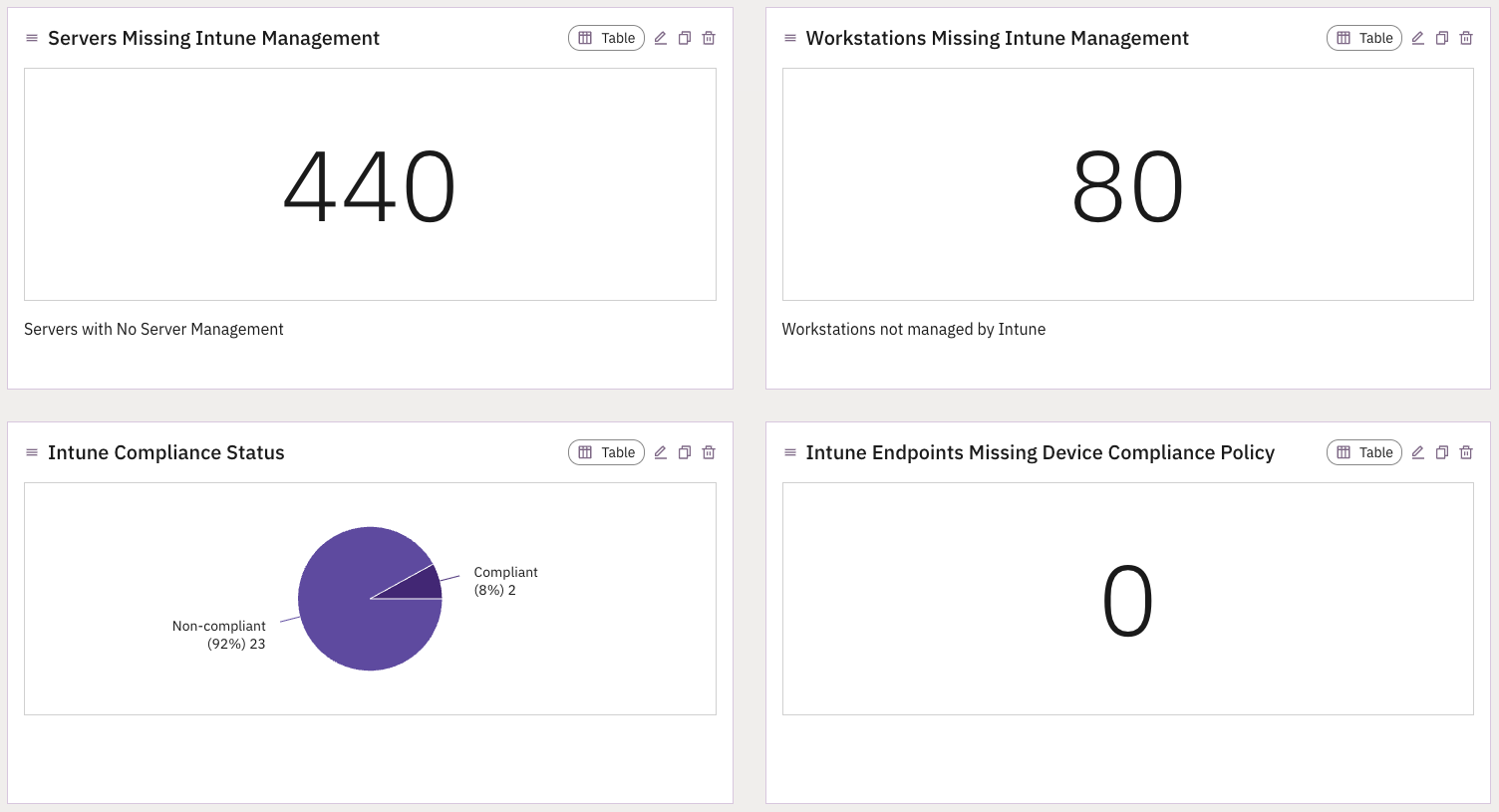
In Prelude: These reports can also be built in Prelude to fully visualize the current coverage and configuration of your Intune deployment alongside your other Microsoft tools.
Action steps in Prelude:
- Connect your Microsoft Intune instance via read-only integration or Microsoft one-click integration
- Navigate to Reporting > Intune in the Prelude Reports section
- This report can be customized visually or to include additional reports such as device compliance status, ASR policy status, etc
Notifications for drift
Create automated notifications to alert administrators when devices fall into default-policy noncompliant states.
Example notification setup (via Microsoft Intune admin center):
- Navigate to Devices > Compliance > Notifications
- Configure email alerts for:
- Devices marked Is active — Not compliant (target: IT operations team)
- Devices marked Has compliance policy assigned — Not compliant (target: policy administrators)
- Route alerts to service desk ticketing systems or Slack/Teams channels for rapid triage.
.jpg)
.jpg)